
Editor Screen
* For information on the functions of the buttons displayed in unit operation mode, see here.
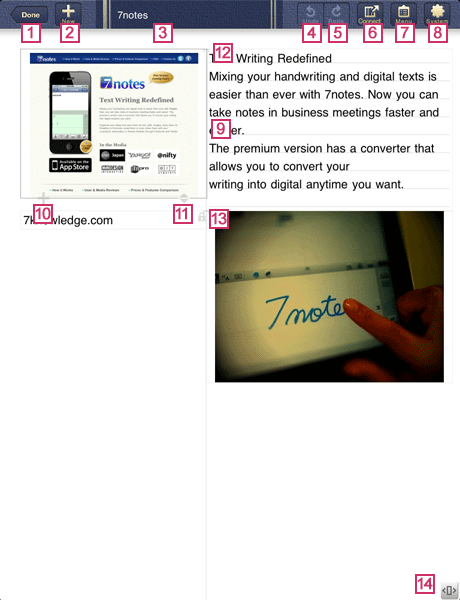


- Finishes the editing of the document. When you tap this button, the document list screen appears.


- Creates a new document.
 Title
Title- The title of the document is displayed. When you tap the title, you can change it.


- Cancels the last change made on the editor screen.


- Reverts the document to the state before is tapped.


- Sends a document by e-mail or posts it to Twitter or Facebook.

 or
or 
- A menu for editing a document is displayed. The buttons and menus that appear differ depending on whether a unit is selected or edited, or on the type of the unit.


- Accesses the Help or changes the settings for 7notes HD. When you tap this button, the system settings screen appears.
 Input Area
- In this area, a unit is added and edited to edit a document.
While you are editing a text unit, one of the convert mode screen, stroke mode screen, and onscreen keyboard, determined by the selected input mode, is displayed in the lower part of this area. 

- Adds a text unit immediately below the unit.


- Drag this up and down to change the unit height.


- Displayed when the top edge of the unit is aligned with that of the unit on the left or right.


- Displayed when the unit is in read-only mode. Units indicated with this icon cannot be edited or cut (deleted).

![[<[]>]](./img/btn_unit_control_off.gif)
- Switches to unit operation mode. In unit operation mode, you can move units or change column widths.
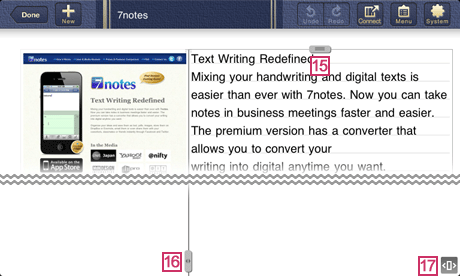
Unit operation mode

![[=]](./img/icon_unit_move.gif)
- Drag this to move the unit.

![[..]](./img/icon_column_resize.gif)
- When you are editing a 2-column or 3-column document, drag this to the left or right to change the column width. The width of the unit also changes.

![[<[]>]](./img/btn_unit_control_on.gif)
- Exits unit operation mode.