
Adding an Image - Image Unit
Adding an image unit
- On the editor screen, tap to select the unit that is immediately above, below, on the left of, or on the right of the position in which you want to add a unit.
If you are editing that unit, go to step 2. - Tap
 or
or  > Add Unit.
 - On the add unit screen, tap Image Unit in Unit Type.
* To add an image unit of the same unit template as that registered in the document, tap one indicated with
 in Unit Template.
 - Tap the position in which the unit is added, with respect to the unit selected in step 1.
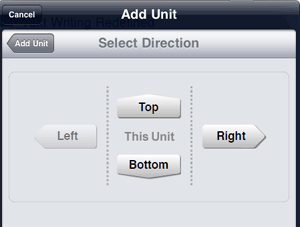
- From the album, select the image you want to display.
The image unit is added and the selected image is displayed.
Changing the image in the image unit
* If you have adjusted the display of the image in the image unit, changing the image reverts it back to the original state.
- On the editor screen, tap to select the image unit.
If you are editing that image unit, go to step 2. - Tap or > Read from Photo Album.
- From the album, select the image.
- You can enlarge or reduce the size of the image in the image unit or adjust the area of the image displayed in the image unit.
- The image in an image unit can be saved. Tap to select the image unit, and then tap > Send to Photo Album.
