
Adding Letters - Text Unit
When you double-tap an empty area that does not contain any units on the editor screen, a text unit can be added. You can also add a text unit using the following procedures:
To add a text unit immediately below an existing unit
- On the editor screen, tap to select the unit that is immediately above the position in which you want to add a unit.
- Tap + in the lower left of the unit.
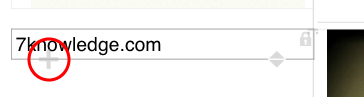
A text unit where you can enter letters is added.
To use a unit template or specify the position in which a unit is added
You can add a unit of the same unit template as a registered one or specify the position in which a unit is added.
 Registering a Frequently Used Unit - Unit Template
- On the editor screen, tap to select the unit that is immediately above, below, on the left of, or on the right of the position in which you want to add a unit.
If you are editing that unit, go to step 2. - Tap
 or
or  > Add Unit.
 - On the add unit screen, tap Text Unit in Unit Type.
* To add a text unit of the same unit template as that registered in the document, tap one indicated with
 in Unit Template.
 - Tap the position in which the unit is added, with respect to the unit selected in step 1.
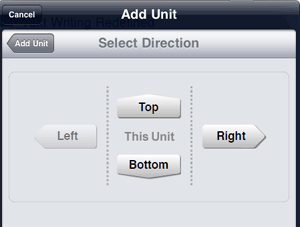
A text unit is added.
- The fonts, margins, and decorations of units added without using a unit template are configured according to the predetermined settings. You can change these settings.