
Convert Mode Screen
On the convert mode screen, you can convert and enter your handwritten letters as text.
* This screen is only displayed in 7notes HD Premium.
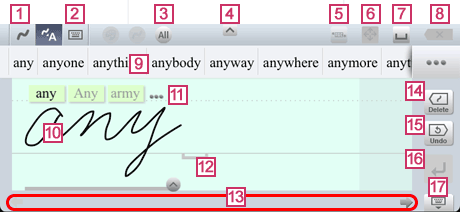
* In this screenshot, converted alternatives are displayed above the input area. Depending on the settings, converted alternatives are displayed near the insertion point.


- Switches to the stroke mode screen.


- Switches to keyboard mode.
This button is not displayed during conversion of letters that were entered previously. 

- Displays the type of the letters to be recognized. When you tap this button, you can change the type of the letter.
When you enter only a specific type of letters, specifying the letter type improves the recognition rate. 
 /
/
- Switches the height of the input area.


- Switches to the mode for selecting the letters in the text unit. In this mode, you can drag or use
 to select the letters to be operated.
Each time you tap this button, you can toggle between this selection mode and normal mode. 
- Moves the insertion point in the text unit when nothing is written in the input area.
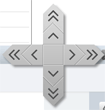
When you touch and hold this button, arrows appear. When you slide your finger to an arrow, the insertion point moves in the direction of the arrow. Pressing a double arrow (such as >>) moves the insertion point faster.


- Converts the letters written in the input area into text as they are recognized, and enters them. A space is inserted at the end of the text. In this case, the entered text is not learned.
When nothing is written in the input area, a space is inserted at the insertion point.* While the letters to be converted are displayed during conversion of letters that were entered previously, tapping this button replaces those letters with a single space.


- Deletes the letter, space, or line feed code before the insertion point when nothing is written in the input area.
 Converted Alternatives
- Converted alternatives for the letters written in the input area are displayed. Spelling correction alternatives are indicated with a blue underline.
The converted alternative you tap is entered. Tap ... to display other alternatives.  Input Area
- Handwrite whatever you want to enter.
You can write letters below the baseline (straight line).
At the end of the handwritten letters, is displayed to indicate an interval to be recognized as a space. You can insert a space by starting the next letter after an interval larger than the width of this mark. A space is considered a delimiter of words.
When a gray part is displayed on the right-hand end of the input area, handwriting in this area automatically scrolls the input area.
During conversion of letters that were entered previously, the letters to be converted are displayed. You can handwrite to add letters.  Recognized Alternatives
- Recognized alternatives for the letters written in the input area are displayed. When you tap and change a recognized alternative, the change is applied to the converted alternative. Tap ... to display other alternatives or delete what you wrote.


- Displays recognized alternatives for the letters written in the input area. You can select a different recognized alternative or delete what you wrote.
*
is displayed for each word.  Scroll Bar
- Scrolls the input area.


- Deletes the latest stroke in the input area. When you touch and hold this button, the button becomes
 . In addition, the following buttons appear, providing more deletion methods:
 Deletes all strokes.
 Deletes a group of strokes (for example, one letter or word).

- Restores what was written in the input area before the last delete operation.
When nothing is currently written in the input area, the last contents that were written in the input area is restored. 
 or
or 
- When nothing is written in the input area, tapping inserts a line feed code at the insertion point.
During conversion of letters that were entered previously, this button becomes. Tapping skips the conversion of handwritten letters in the input area. When there are other handwritten letters in the same text unit, they are displayed as conversion targets in the input area. 

- Closes the convert mode screen to finish editing of the text unit.
You can drag the icon to move the screen up and down in iOS 5.