
Document Style Screen
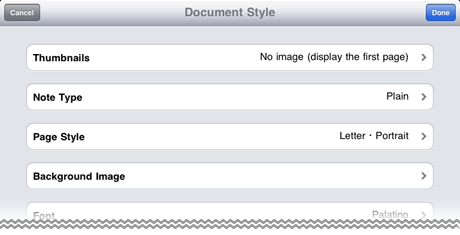
* When Follow Document Style on the unit style screen is turned on, the settings from Font to Line Style are applied to the unit. Among those settings, Font, Font Size, Line Feed, and Line Style only have effect on text units.
* The Page Style, Header, and Footer settings take effect when a document is converted into JPEG or PDF format or printed.
- Thumbnails
- Select from the album to specify the thumbnails for documents to be displayed on the document list screen.
In the initial configuration, thumbnails are automatically created from images of the first pages of the documents. - Note Type
- Select a predetermined setting to specify the Page Style, Font, Font Size, Margin, Line Feed, Line Style, and Column Line Style settings at one time.
You can customize each item after selecting a predetermined setting. - Page Style
- Select the paper for the document.
- Background Image
- Select the image to be used on the document background.
Select one from the provided images or from the album. - Font, Font Size
- Specify the font and the font size for the letters in the text unit, respectively.
* The setting for Font is not applied to handwritten letters.
[Margin]
- Top and Bottom, Left and Right
- For the unit, specify the top and bottom margins and the left and right margins in units of em, respectively. Drag the slider to specify the value.
A length of 1.0 em is equal to the width and height of one character. - Line Feed
- For the text unit, specify the height between the top edges of two consecutive lines in units of em. Drag the slider to specify the value.
A length of 1.0 em is equal to the width and height of one character.
[Border Style]
- Background Color, Border Type
- Specify the background color used in the unit and the lines to be used as the borders of the unit, respectively.
- Line Style
- Specify whether to draw, in the text unit, horizontal ruled lines that you would find in notebooks and the color and style of those lines.
- Column Line Style
- Specify whether to draw ruled lines between columns and the color and style of those lines.
You can specify this item when you are editing a 2-column or 3-column document. - Header, Footer
- Configure the header and footer of the document, respectively.
In the header and footer, you can enter any text, the document title, last modified date and time, page number, and total number of pages. - Save Style
- The settings configured on the document style screen are saved in the system.
The saved settings are applied to documents you create later.
* To restore initial settings, you must manually reset respective settings.
