
Searching Documents with Tags
On the document list screen, you can search for documents by tags.
There are two ways to search documents; setting a display option and selecting a Cabinet in which a display option is set.
- 1.On the document list screen, tap Select under the document list screen.
[Specifying an option]
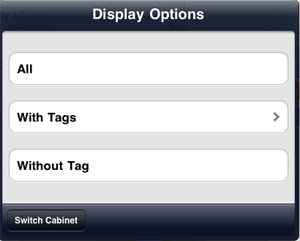
- Search documents with specified option.


- Searching documents with specific tags
- Tap With Tags to check the tags you want to show, then tap Done.
You can check more than one tag.* Check the AND column of the tags on the expert search screen.
- Searching documents without specific tags
- Tap With Tags and tap Expert Search.
On the expert search screen, check the NOT column of the tags you don't to want to show, then tap Done. - Searching documents with a variety of options
- Tap With Tags and tap Expert Search.
On the expert search screen, check the AND, OR, and/or NOT columns of each tag, then tap Done.
AND Searches documents with all checked tags. OR Searches documents with anyone of the checked tags. NOT Searches documents without the checked tags. - Searching documents without tag
- Tap Without Tag.
[Selecting a cabinet]
- On the display options screen, tap Switch Cabinet.
- On the switch cabinet screen, select a cabinet.
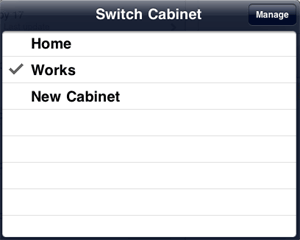
The cabinet will be switched. Documents are searched with the specified cabinet display option.
- You can change the display option. After switching to the cabinet you want to change, follow [Specifying an option] described above to change the option.
- To show all documents, tap All after step 1.