How to Set up 7notes with mazec on Android 4.0.3
Last Modified: July 12, 2012
If you use Android 3.x or later then, setting up "7notes with mazec" is slightly different from the previous OS versions.
When you hold down on a text box where "Press Long Here" is shown in our screenshot, nothing may happen.
Here are steps to set up "7notes with mazec" correctly on Android 4.0.3 (ICS).
After you install the app, you will see the "mazec configuration guide" as follows (the images were taken using Sony Tablet S):
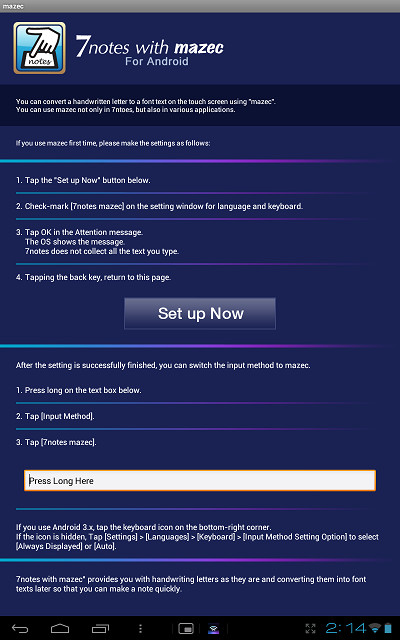
- Tap the "Set up Now" button.
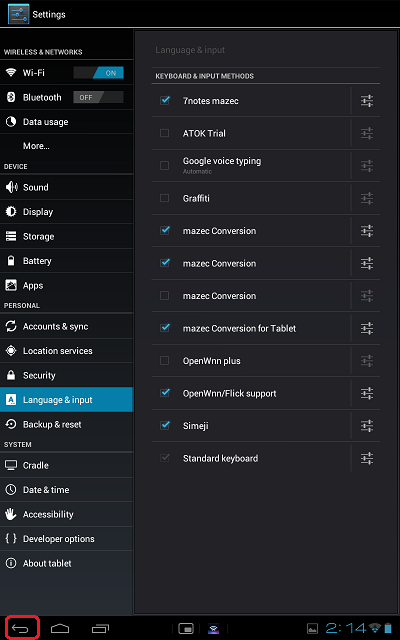
- Check "7notes mazec" to "ON" in the language and input settings window.
-> You will get the Attention message.
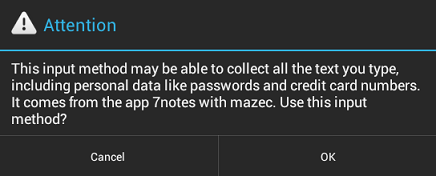
- Tap the OK button.
- Tap the back key to return to the guide page.
After this configuration has been made, you should be able to switch the input method to use the mazec window.
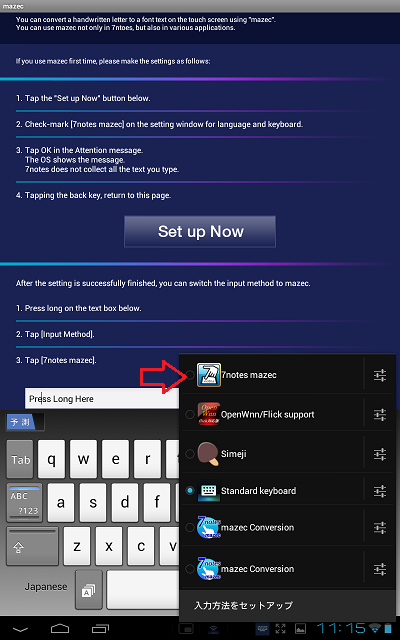
- Tap a text input box (e.g. where "Press Long Here" is shown in the following screenshot).
-> An input method (such as a keyboard) is displayed.
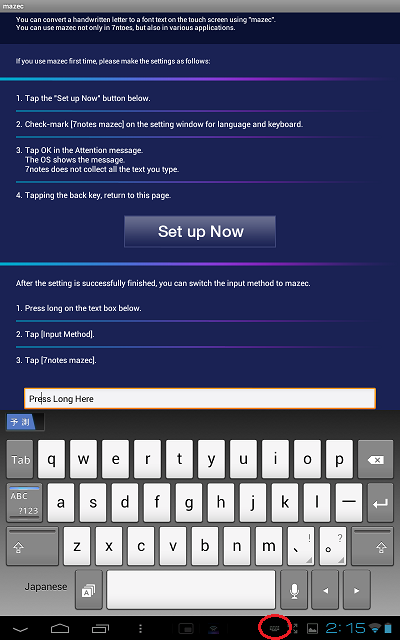
- Tap the keyboard icon (red-circled in the image above at the bottom of the display).
- Select "7notes mazec" from the list of input methods.
- Tap "Use 7notes."
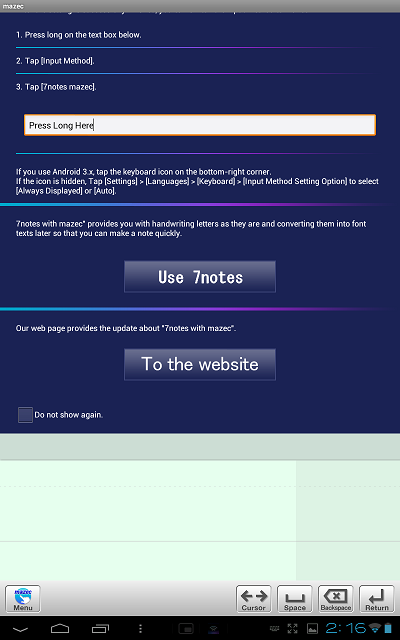
The 7notes editor will open and everything should be configured correctly.
Enjoy 7notes with mazec for Android!
© MetaMoJi Corporation, All rights reserved.